Connect ApexMCP to Claude.ai
ApexMCP implements the MCP Authorization Spec (2025-06 revision) — Claude.ai’s custom-connector OAuth flow works against any ApexMCP tenant with no extra configuration.
Steps
-
In Claude.ai, open Settings → Connectors → Add custom connector.
-
Paste your MCP endpoint URL:
https://mcp.apexmcp.ai/mcp/<your-org-slug>/sseFind your org slug in the ApexMCP dashboard under Settings → Organisation.
-
Click Connect. Claude.ai will:
- Discover the OAuth Authorization Server via
/.well-known/oauth-protected-resource. - Register itself as a public PKCE client (RFC 7591 Dynamic Client Registration).
- Open
app.apexmcp.ai/oauth/consentin your browser.
- Discover the OAuth Authorization Server via
-
Sign in to ApexMCP (or skip if already signed in). The consent screen shows:
- The client name (Claude.ai).
- The organisation you’re authorising.
- The scope (
mcp:call). - The redirect URI.
-
Click Approve. The browser returns to Claude.ai with the connector marked Connected.
What gets issued
| Token | Lifetime | Stored by |
|---|---|---|
| Access token | 1 hour | Claude.ai (memory) |
| Refresh token | Configurable per org (default 30 days), rotated on every use | Claude.ai (memory) |
If you revoke the connector in Claude.ai, the next refresh attempt fails and the entire token chain is invalidated server-side (RFC 6749 §10.4 reuse detection).
Revoking access
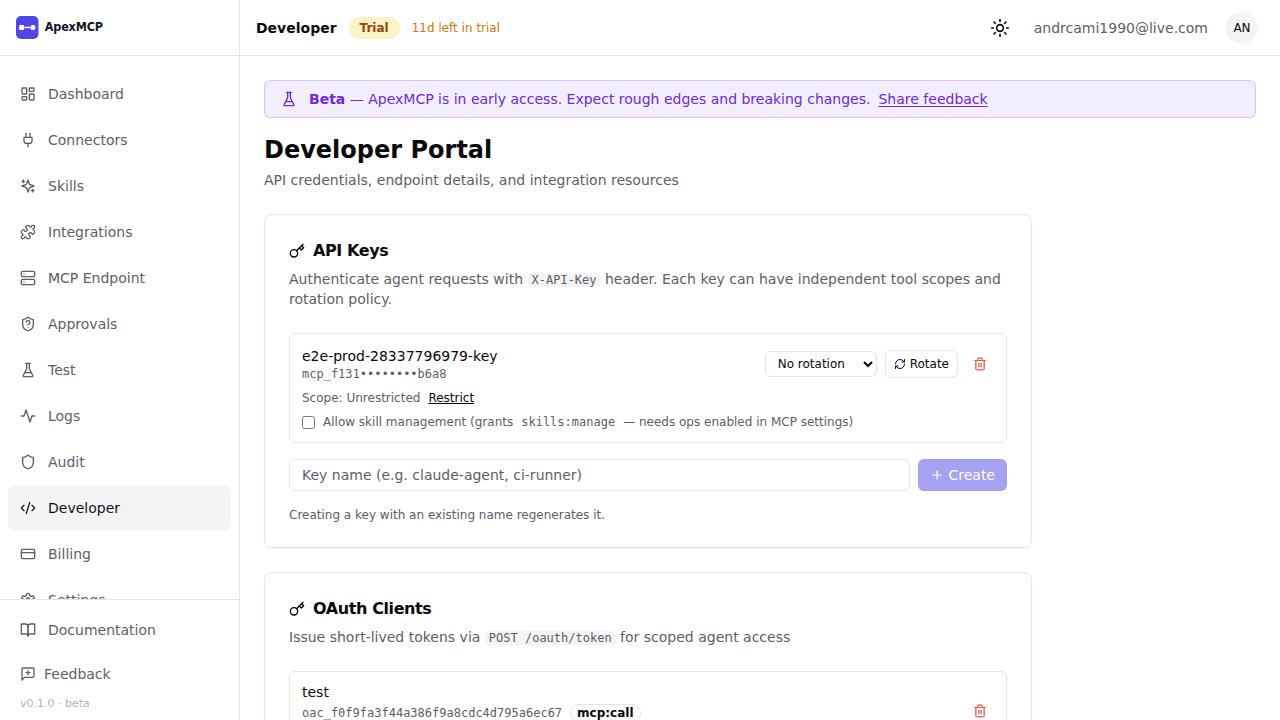
To force Claude.ai to re-authenticate, go to Developer Portal → OAuth Clients and delete the client or create a new one. This immediately revokes all refresh tokens for your organisation. Active access tokens remain valid for up to 1 hour (stateless JWT — cannot be proactively invalidated). A warning is shown in the dashboard when you perform this action.
To change how long refresh tokens remain valid, use the Refresh token lifetime selector in the OAuth Clients section (options: 1 day, 7 days, 30 days, 90 days). The new lifetime applies to tokens issued after the change.
Scope of access
The token grants access to the organisation that was active in your session at consent time, with the same role you hold in that organisation. To grant Claude.ai access to a different organisation, switch organisations in the dashboard first, then re-run the connect flow.
Self-hosted ApexMCP
If you self-host, set these env vars on both the gateway and web services before deploying:
OAUTH_HANDOFF_SECRET=<32+ char shared secret>   # MUST be identical on gateway + web
PUBLIC_WEB_BASE_URL=https://app.your-domain.example   # gateway → consent UI
PUBLIC_MCP_BASE_URL=https://mcp.your-domain.example   # discovery issuer
Both subdomains MUST be reachable from the user’s browser; the consent flow is browser-driven.
Troubleshooting
| Symptom | Likely cause |
|---|---|
| ”Couldn’t reach the MCP server” | Server returning 401 without WWW-Authenticate header. Verify gateway is on ≥ branch with MCP OAuth AS shipped. |
GET /authorize → 404 | Gateway on older release (client_credentials only). Upgrade. |
| ”handoff invalid” after approving consent | OAUTH_HANDOFF_SECRET mismatch between gateway and web. Same value on both. |
| Consent page asks you to log in repeatedly | NextAuth cookie not surviving cross-subdomain navigation. Check AUTH_TRUST_HOST=true and that the consent URL is on the same parent domain as the dashboard. |
Alternative: Claude Desktop (mcp-remote bridge)
If you must use Claude Desktop (older releases without native MCP OAuth):
{
  "mcpServers": {
    "apexmcp": {
      "command": "npx",
      "args": ["-y", "mcp-remote",
               "https://mcp.apexmcp.ai/mcp/<slug>/sse",
               "--header", "X-API-Key:${APEX_KEY}"],
      "env": { "APEX_KEY": "<your-api-key>" }
    }
  }
}
Generate the API key in Dashboard → Agents.