Team Management
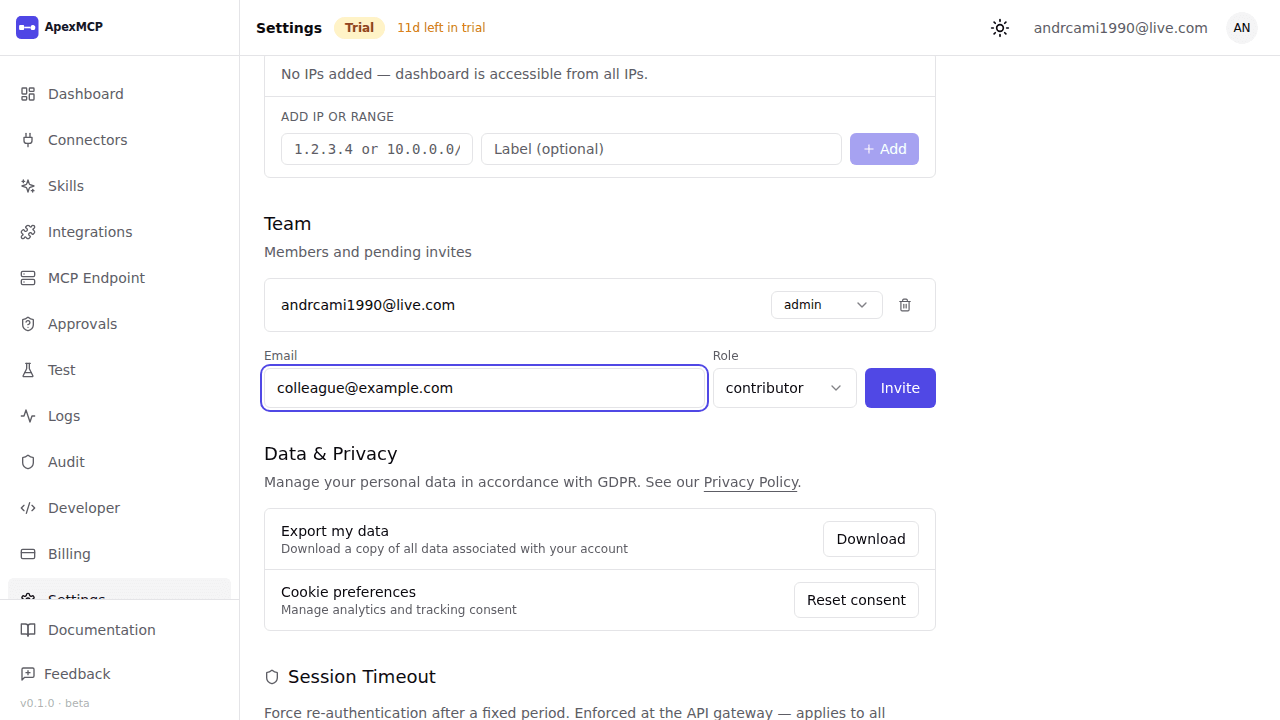
Admins can invite teammates and control what they can access using roles.
Go to Settings → Team to manage members.
Roles
| Role | What they can do |
|---|---|
| Admin | Everything — connectors, team, billing, settings, audit logs, API keys |
| Finance | View billing, invoices, usage logs, dashboard |
| Contributor | Add/edit connectors, use the MCP endpoint and tool tester |
| Pending | Just signed up — cannot access the dashboard until promoted |
A single user can only belong to one organisation. If they already have an ApexMCP account under a different org, they cannot be invited.
Inviting a Member
- Go to Settings → Team → Invite Member
- Enter their email address
- Select a role
- Click Send Invite
The invited user receives an email with a signup link (or a login link if they already have an account). Once they complete signup, they appear in the team list.
Changing a Role
Click the role badge next to any member to change it. Changes take effect on their next page load (session refresh).
You cannot demote yourself — another admin must change your role.
Removing a Member
Click Remove next to a member. This revokes their dashboard access immediately. Their account is not deleted — they can be re-invited later.
Removing a member does not delete any connectors they created.
SCIM Provisioning (Enterprise)
Enterprise plans support automated user provisioning via SCIM 2.0. This syncs users and roles from your identity provider (Okta, Azure AD, etc.) automatically.
See Authentication → SCIM for setup instructions.