MCP Endpoint & API Keys
Your MCP endpoint is the URL your AI agent connects to. Everything your connectors expose as tools is available through this single URL.
Your Endpoint URL
Go to MCP Endpoint in the sidebar.
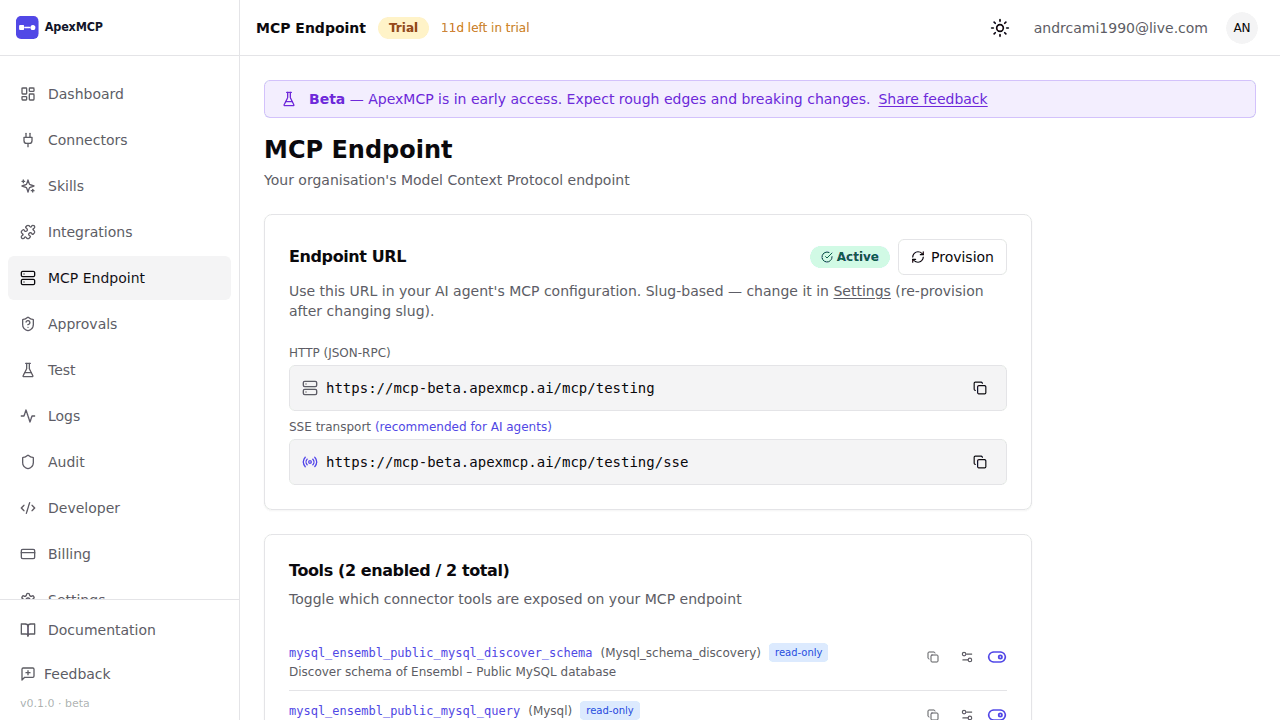
Your endpoint URL looks like:
https://gateway.apexmcp.ai/mcp/<your-org-slug>This URL is stable — it doesn’t change when you add or remove connectors.
Tip: Each tool’s editor has a Require human approval toggle. Enable it on sensitive tools (writes, deletes, payments) to pause agent calls for a human to approve. See Tool Approvals.
API Keys
All requests to your MCP endpoint require an API key. Keys are org-scoped — one key grants access to all connectors in the org.
Creating an API Key
Go to Settings → API Keys → New API Key.
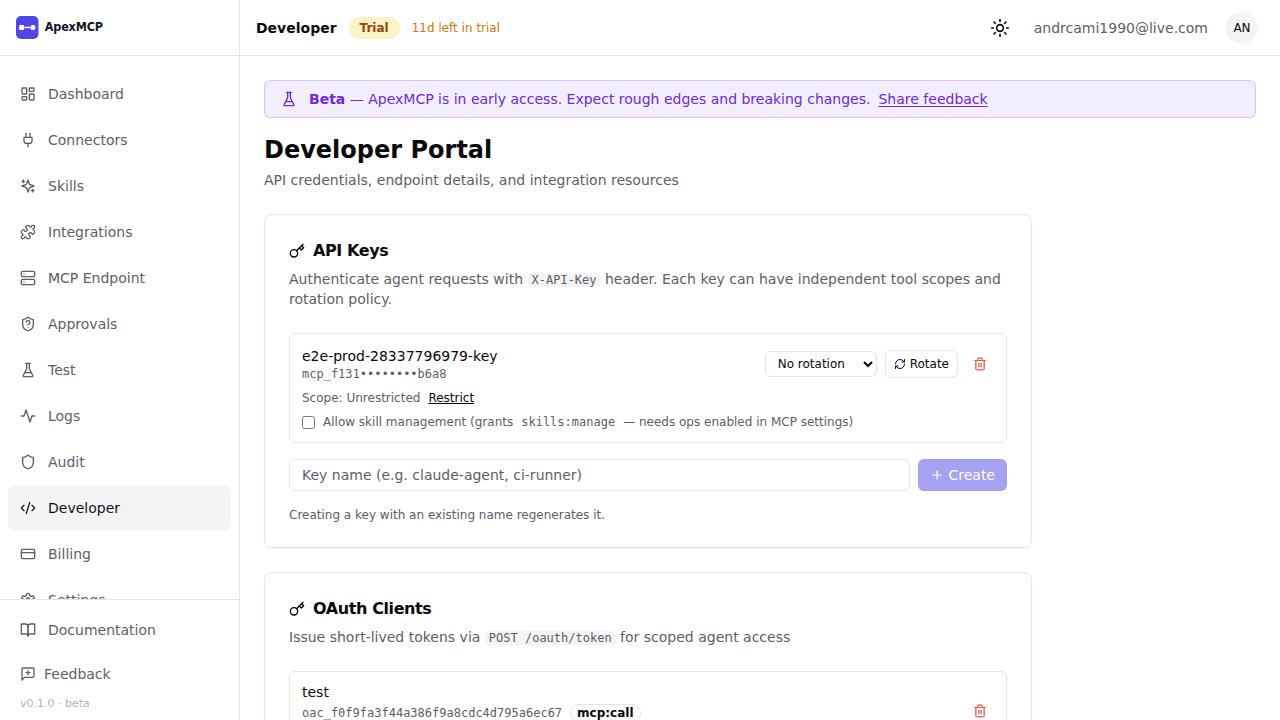
- Enter a name (e.g.
claude-agent,prod-key) - Click Create
- Copy the key — it is shown once only and cannot be retrieved later
Keys look like:
apx_live_sk_xxxxxxxxxxxxxxxxxxxxxxxxxxxxxxxxStore it in your agent’s environment variables, not in source code.
Revoking a Key
Click Revoke next to any key in the list. Revocation is immediate — any agent using that key will start getting 401 responses.
Connecting an AI Agent
Claude Desktop / Claude.ai
Add this to your Claude MCP config (claude_desktop_config.json):
{
  "mcpServers": {
    "apexmcp": {
      "url": "https://gateway.apexmcp.ai/mcp/<your-org-slug>",
      "headers": {
        "X-API-Key": "apx_live_sk_xxxxxxxxxxxxxxxxxxxxxxxxxxxxxxxx"
      }
    }
  }
}
OpenAI Agents SDK
from agents import Agent, MCPServerSse

mcp_server = MCPServerSse(
    url="https://gateway.apexmcp.ai/mcp/<your-org-slug>",
    headers={"X-API-Key": "apx_live_sk_xxxxxxxxxxxxxxxxxxxxxxxxxxxxxxxx"},
)

agent = Agent(name="my-agent", mcp_servers=[mcp_server])
Raw HTTP (MCP over HTTP+JSON-RPC)
# List available tools
curl -X POST https://gateway.apexmcp.ai/mcp/<your-org-slug> \
  -H "Content-Type: application/json" \
  -H "X-API-Key: apx_live_sk_xxxxxxxxxxxxxxxxxxxxxxxxxxxxxxxx" \
  -d '{"jsonrpc":"2.0","id":1,"method":"tools/list","params":{}}'

# Call a tool
curl -X POST https://gateway.apexmcp.ai/mcp/<your-org-slug> \
  -H "Content-Type: application/json" \
  -H "X-API-Key: apx_live_sk_xxxxxxxxxxxxxxxxxxxxxxxxxxxxxxxx" \
  -d '{
    "jsonrpc": "2.0",
    "id": 2,
    "method": "tools/call",
    "params": {
      "name": "query_postgres_users",
      "arguments": { "sql": "SELECT id, email FROM users LIMIT 10" }
    }
  }'
Testing Tools
The Test page lets you call tools from your browser without needing an agent.
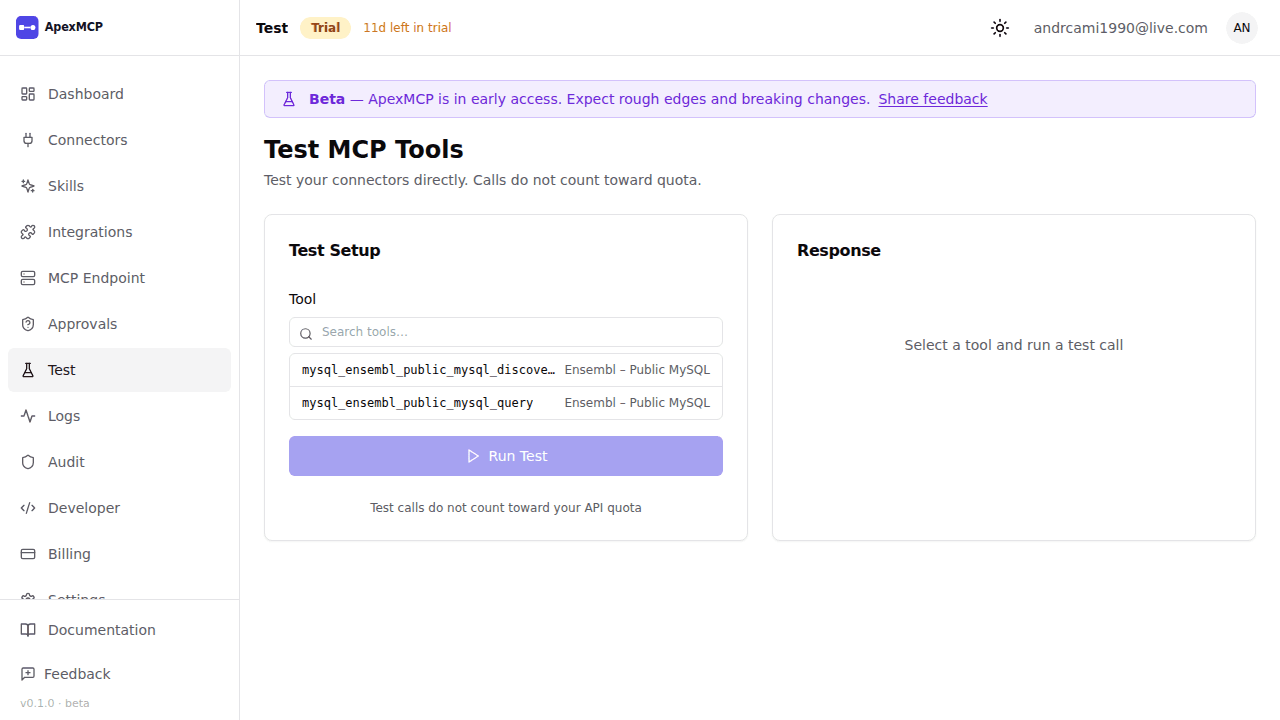
- Go to Test in the sidebar
- Select a tool from the dropdown — all active connector tools appear here
- Fill in the arguments (the form is generated from the tool’s input schema)
- Click Run — the response appears inline
This is useful for:
- Verifying a connector works end-to-end
- Exploring what data a tool returns before wiring it to an agent
- Debugging tool call failures
Provisioning Status
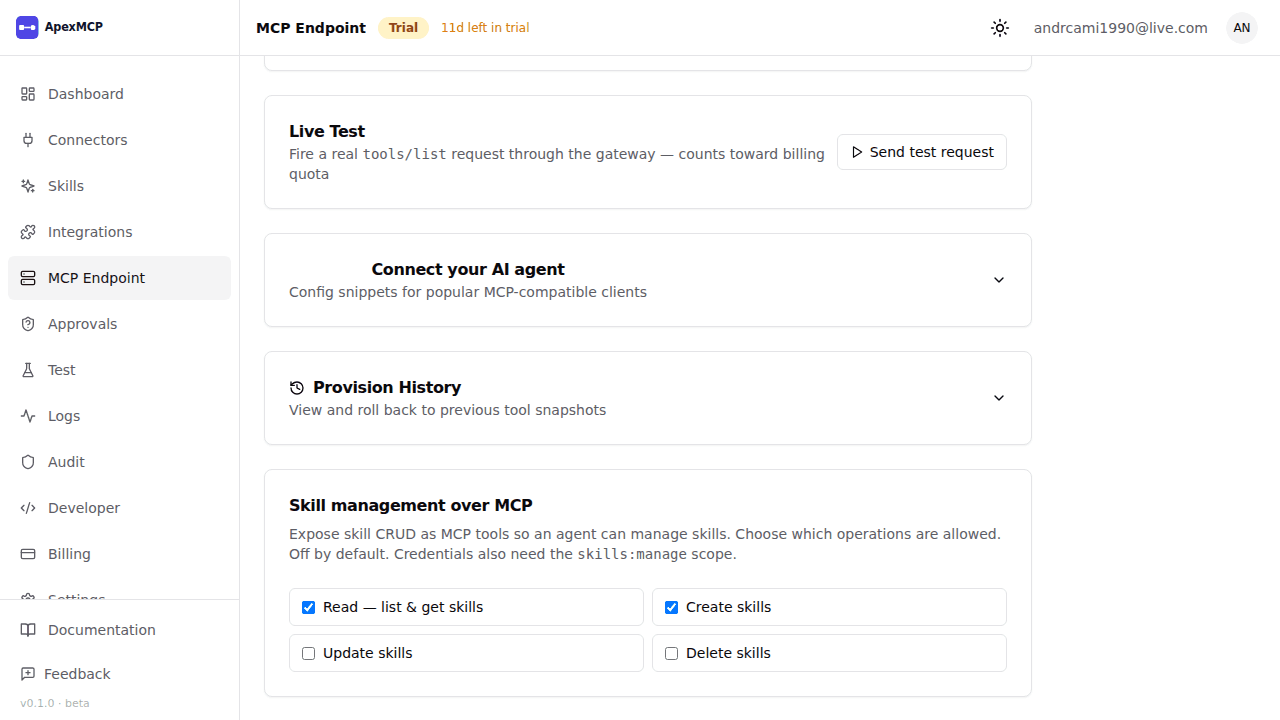
Before your endpoint is usable, ApexMCP must provision an MCP server instance for your org. This happens automatically during onboarding (Step 3).
If status shows Not Provisioned, click Provision to trigger it manually. Provisioning typically takes a few seconds.
Per-Tool Enable/Disable
From the MCP Endpoint page you can enable or disable individual tools without removing the connector. Disabled tools are hidden from tools/list responses and cannot be called.
This is useful for exposing only specific tables from a database rather than everything schema discovery found.