Dashboard Overview
After signing in and completing onboarding, you land on the main dashboard.
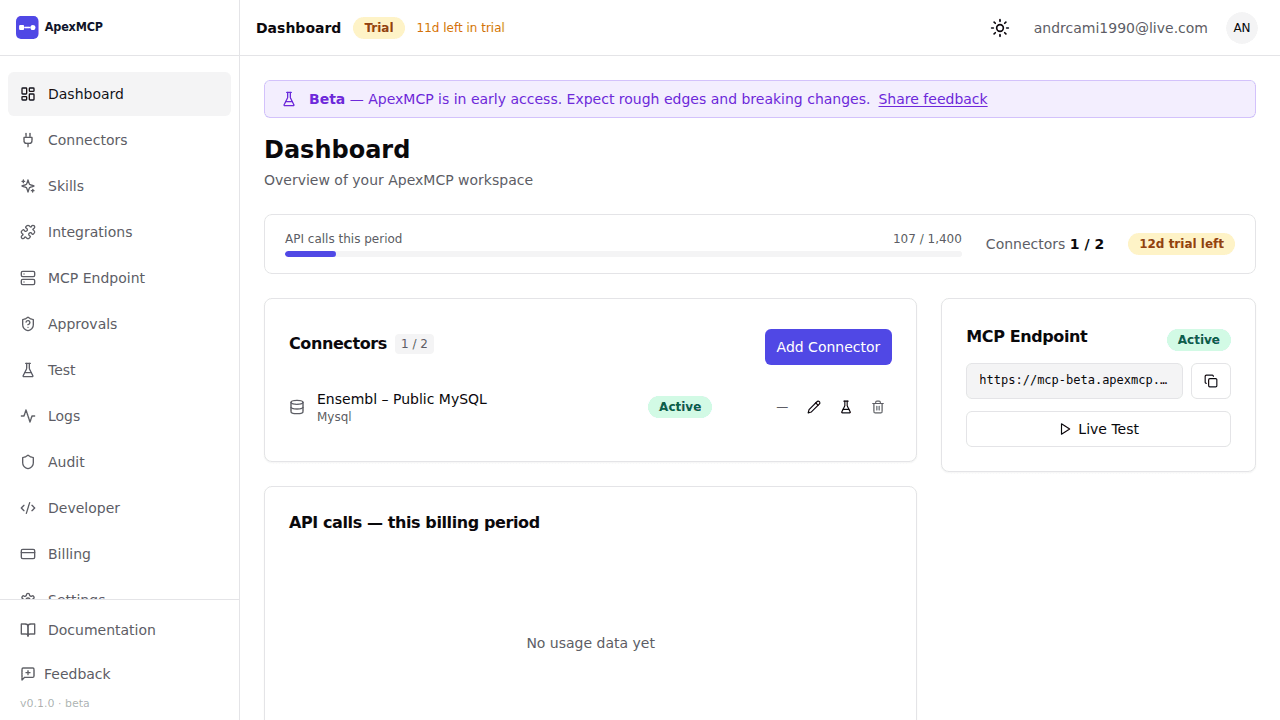
Navigation
The left sidebar contains all sections. What you see depends on your role.
| Section | Roles with access | Description |
|---|---|---|
| Dashboard | All | Usage stats, active connectors, recent tool calls |
| Connectors | Admin, Contributor | Add and manage data source connectors |
| MCP Endpoint | Admin, Contributor | Your endpoint URL, API keys, provisioning status |
| Test | Admin, Contributor | In-browser tool tester — call tools without an agent |
| Logs | Admin, Finance | Per-request tool call logs with latency and status |
| Audit | Admin | Tamper-evident audit log of all org actions |
| Billing | Admin, Finance | Plan, usage, invoices |
| Settings | Admin | Org name, API keys, team invite links |
| Platform | Superadmin only | Global org management (ApexMCP staff only) |
Dashboard Widgets
The main dashboard shows:
- Active connectors — count of connectors in
activestate - Tool calls this month — metered usage against your plan quota
- MCP endpoint status — provisioned / not provisioned
- Recent activity — last tool calls with tool name, org, timestamp
Your MCP Endpoint
Your endpoint URL is always shown at the top of the MCP Endpoint page:
https://gateway.apexmcp.ai/mcp/<your-org-slug>This is the URL you paste into your AI agent’s MCP config.
Onboarding Wizard
New organisations start with a 6-step wizard:
| Step | What happens |
|---|---|
| 1 — Welcome | Confirm org name and slug |
| 2 — Connector | Add your first data source |
| 3 — Provisioning | ApexMCP creates your MCP server instance |
| 4 — Schema | Select which tables/endpoints to expose as tools |
| 5 — Test | Make your first tool call from the browser |
| 6 — Done | Redirect to the dashboard |
If you close the browser mid-wizard, progress is saved. Returning to the dashboard resumes from where you left off.